Documentation
Everything you need to get started with ClawTick.
Quick Start
1. Create an account
Sign up at clawtick.com with email or Google. You get the Free plan automatically — no credit card required.
2. Configure your gateway
Go to Dashboard → Gateway and enter your OpenClaw gateway URL and token. ClawTick connects to your gateway via WebSocket to deliver messages to your agents.
3. Create a job
Go to Dashboard → Jobs, click "Create Job", pick a schedule, write your message, and you're live.
4. (Optional) Install the CLI
npm install -g clawtickManage jobs from your terminal. Generate an API key in Dashboard → API Keys to authenticate.
Dashboard Guide
The dashboard gives you a full overview of your jobs, execution history, and account settings.
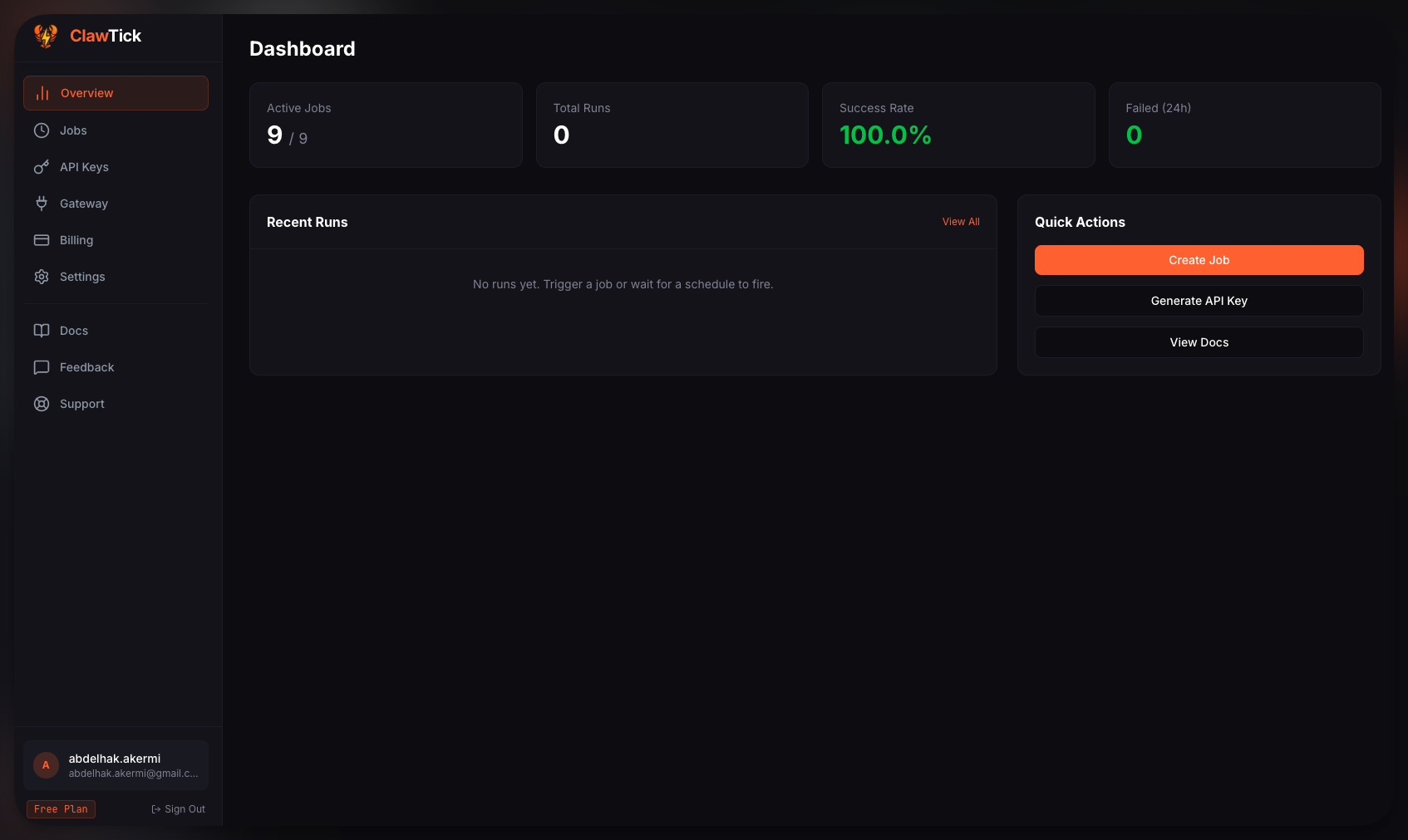
Dashboard overview — jobs, recent runs, success rate
Overview — See total jobs, enabled jobs, run counts, success rate, and recent activity at a glance.
Jobs — Create, edit, pause/resume, duplicate, trigger, and delete jobs. Each job card shows its schedule, last run status, and quick actions.
API Keys — Generate keys for CLI authentication. Keys are shown once on creation — save them somewhere safe.
Gateway — Configure your OpenClaw gateway connection. Test it with one click.
Billing — View your current plan and manage your subscription.
Settings — See usage quotas (jobs and triggers) for your current plan.
Creating Jobs
Click "Create Job" on the Jobs page to open the job creation modal. Here's what each field does:
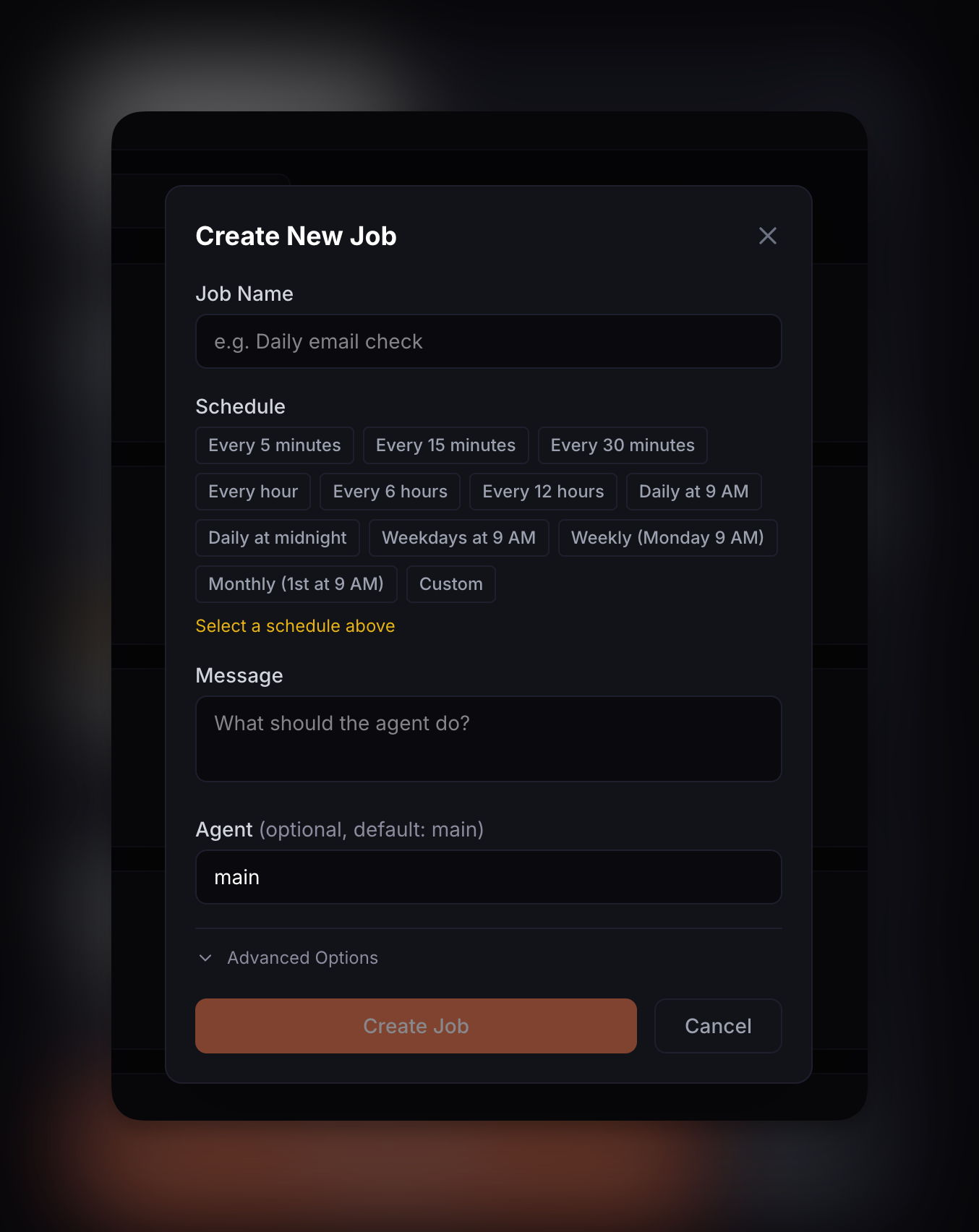
Create Job modal — schedule presets, message, advanced options
Job Name
A friendly name for your job. Shows up in the dashboard and execution logs. Example: "Morning briefing", "Hourly health check".
Schedule
Pick from preset schedules or write a custom cron expression. Available presets:
Custom cron uses standard 5-field format: minute hour day month weekday. Use crontab.guru to build expressions.
Message
The text sent to your OpenClaw agent when the job fires. This is what the agent will process — write it like you'd write a prompt. Example: "Check my inbox and summarize unread emails".
Agent
Which OpenClaw agent should receive the message. Defaults to main. If you have multiple agents, specify the target agent ID here.
Job Options Reference
Expand "Advanced Options" in the Create Job modal to access these settings:
Channel
Target delivery channel for the agent response. Examples: whatsapp, telegram, slack, discord. Leave empty if you don't need channel delivery.
Deliver Agent Response
Toggle this on to send the agent's response back through the specified channel. When off, the agent still processes the message but the response only appears in logs.
Reply To
Delivery target identifier. Depends on the channel:
- Telegram: Chat ID (e.g.
123456789) - Slack: Channel name (e.g.
#general) - Discord: Channel ID
Timezone
IANA timezone for the cron schedule. Defaults to UTC. Examples: America/New_York, Europe/London, Asia/Tokyo.
Full Options Table
| Option | Required | Default | Description |
|---|---|---|---|
| name | Yes | — | Job display name |
| cron | Yes | — | 5-field cron expression |
| message | Yes | — | Prompt sent to the agent |
| agent | No | main | Target agent ID |
| channel | No | — | Delivery channel |
| deliver | No | false | Send response to channel |
| replyTo | No | — | Channel-specific target |
| timezone | No | UTC | IANA timezone |
Gateway Setup
ClawTick connects to your OpenClaw gateway via WebSocket to deliver scheduled messages to your agents. You need a running gateway to use ClawTick.
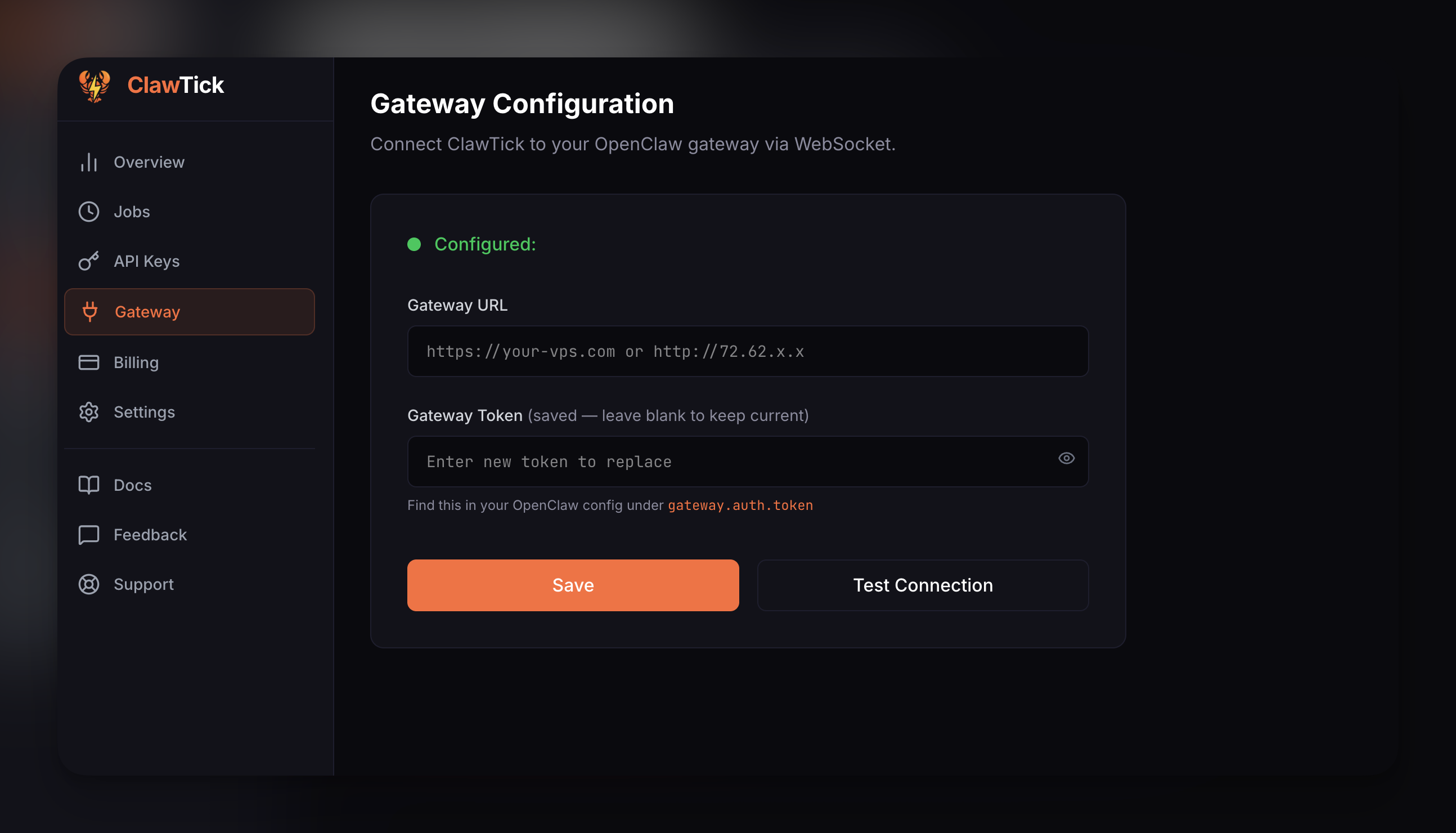
Gateway configuration — URL, token, test connection
Gateway URL
The WebSocket URL of your OpenClaw gateway. Typically runs on your VPS or local machine. Example: http://your-vps-ip:80
Gateway Token
Authentication token for your gateway. Found in your OpenClaw configuration. This is used to authenticate the WebSocket connection.
Testing the Connection
After saving your gateway config, click "Test Connection" to verify ClawTick can reach your gateway. A successful test means jobs will be delivered correctly.
Device Pairing
On first connection, ClawTick needs to pair with your OpenClaw gateway. The gateway will show a device pairing request with the name "ClawTick Scheduler". You have two options to approve:
Option 1: Web UI
Log into your OpenClaw dashboard, go to Settings → Devices, and approve the pending request.
Option 2: CLI
Use the OpenClaw CLI to approve the device:
openclaw devices approve <requestId> --token YOUR_GATEWAY_TOKENReplace <requestId> with the request ID shown in the ClawTick pairing modal.
Once approved, the device is paired and ClawTick can send job requests to your gateway.
Tip: If you're running the gateway locally, you'll need to expose it via a reverse proxy (nginx) or tunneling service so ClawTick can reach it from the cloud.
CLI Usage
Install
npm install -g clawtickLogin with API Key
clawtick login --key cp_your_api_keyGenerate an API key from Dashboard → API Keys.
Create a job
clawtick job create \
  --cron "0 9 * * *" \
  --message "Good morning! Check my emails" \
  --name "Morning check" \
  --agent main
List jobs
clawtick job listTrigger a job manually
clawtick job trigger <jobId>Pause / Resume a job
clawtick job disable <jobId>
clawtick job enable <jobId>
Delete a job
clawtick job remove <jobId>Configure gateway via CLI
clawtick gateway set \
  --url http://your-vps:80 \
  --token your_gateway_token
CLI Options
| Option | Description | Default |
|---|---|---|
| --cron | Cron expression (5-field) | Required |
| --message | Message to send to the agent | Required |
| --name | Job name | Auto-generated |
| --agent | Agent ID | main |
| --channel | Target channel (whatsapp, telegram, slack, discord) | — |
| --deliver | Deliver agent response to channel | false |
| --reply-to | Delivery target (chat ID, channel name) | — |
| --timezone | IANA timezone | UTC |
API Keys
API keys authenticate CLI requests. Generate them from the dashboard.
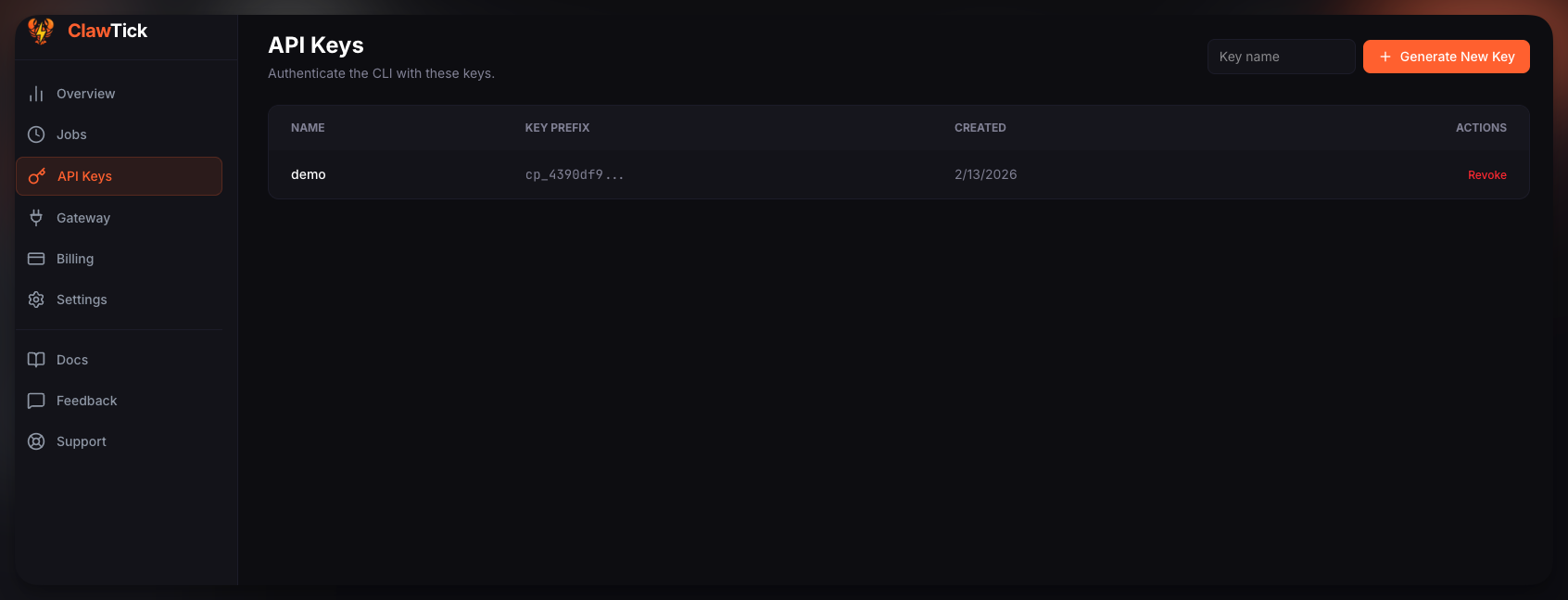
API Keys page — create and manage keys
1. Go to Dashboard → API Keys
2. Click "Create API Key" and give it a name
3. Copy the key immediately — it's only shown once
4. Use it with the CLI: clawtick login --key cp_your_key
Security: API keys have full access to your account via the CLI. Don't share them or commit them to version control. You can revoke a key anytime from the dashboard.
Plans & Limits
| Feature | Free | Starter ($9/mo) | Pro ($29/mo) |
|---|---|---|---|
| Jobs | 10 | 50 | Unlimited |
| Triggers / month | 500 | 5,000 | 50,000 |
| History retention | 14 days | 30 days | 90 days |
| API Keys | ✓ | ✓ | ✓ |
| CLI Access | ✓ | ✓ | ✓ |
| Dashboard | ✓ | ✓ | ✓ |
Manage your plan in Dashboard → Billing. Trigger counts reset on the 1st of each month.
FAQ
ClawTick is a cloud-powered scheduling service for OpenClaw. It replaces unreliable local cron with infrastructure that fires your jobs on time, every time.
You need a running OpenClaw gateway that ClawTick can reach. This can be on a VPS, cloud server, or exposed via a tunnel from your local machine.
ClawTick opens a WebSocket connection to your gateway, authenticates, sends the message to the specified agent, and optionally delivers the response to a channel (WhatsApp, Telegram, etc.).
Yes. Both manage the same jobs. Create a job in the dashboard and trigger it from the CLI, or vice versa.
The job run will be recorded as failed with the connection error. You can see failed runs in the dashboard and retry manually with "Run Now".
No. Every trigger uses a unique idempotency key. Even if there's a retry, the same message won't be sent twice.
Click the pause icon on the job card in the dashboard, or use clawtick job disable <jobId> from the CLI. The job keeps its config but won't fire until resumed.
Ready to get started?